
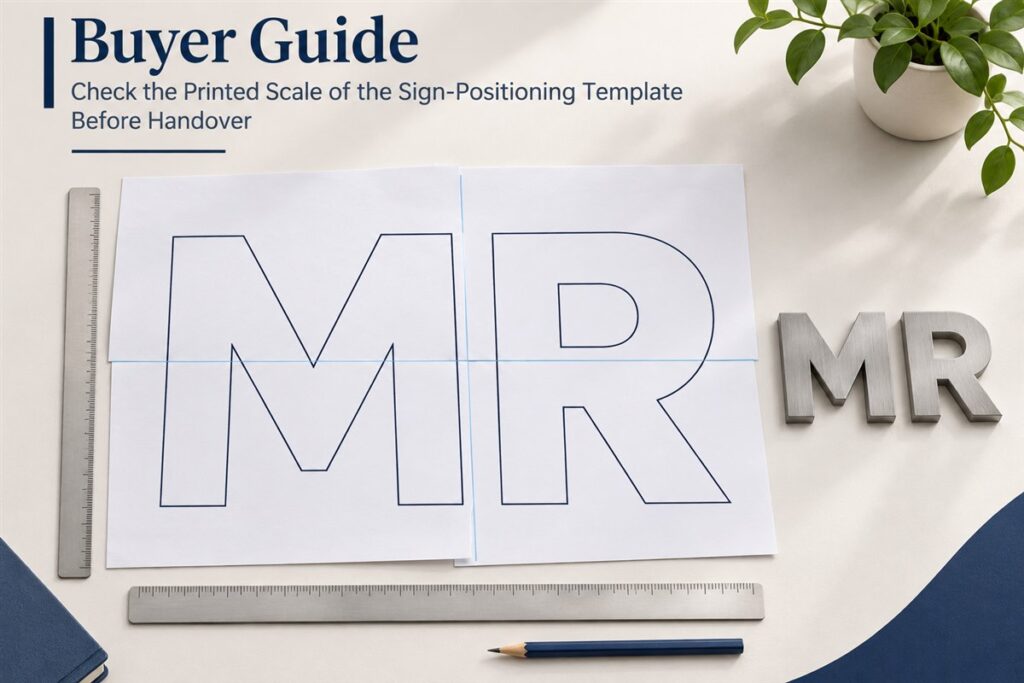
A positioning template can open correctly on screen and still come out of the printer at a different size. A file called “full size” does not confirm the paper output, and a display zoom percentage is not a paper measurement. Before handing the printed template to the installer, check its identified dimensions in both directions and record the result.
For non-illuminated metal letters for a wall, specify whether a positioning template and printing instructions are required in the supply scope. Confirm the format, responsible printing party and current approved file. Do not assume that every order includes a template or that an earlier attachment still controls the project.
Ask what the paper output must reproduce
Start with the supplier’s current template reference and revision. Ask the supplier to confirm its intended print scale and identify at least one horizontal and one vertical check distance. Each needs visible endpoints, an expected printed length and a unit. Use the supplied references rather than inventing a check length or estimating from the letter outlines.
Keep those print-check dimensions separate from the task of choosing the sign’s size. The approved design has already established the intended layout; this check asks whether the paper reproduces the supplied template as required. Our vector artwork guide covers outlines and file geometry, which cannot by themselves verify a later printer output.
Understand the print setting before making the full output
Adobe’s Acrobat page-size guidance distinguishes Fit from Actual size. Fit can enlarge or reduce content for the paper’s printable area. Actual size preserves the page size without scaling, but content that does not fit can be cropped. Choosing that option therefore does not establish that every part of an oversized template has printed.
If the supplier explicitly confirms a PDF intended for 1:1 output, a 100% setting can express the intention not to rescale it. It is not proof that the source file, application, printer settings and finished paper agree. Record the instructed setting and verify the printed checks instead of accepting a percentage alone.
For an oversized page, Adobe’s large-document printing guidance for Acrobat Pro describes Poster printing across several sheets. Tile Scale changes the output scale; overlap, cut marks and labels assist assembly. Labels can identify the filename and page. Confirm which workflow is available in the application actually being used rather than assuming every browser or PDF viewer offers the same controls.
Check the complete paper set, not one attractive sheet
Record the application, selected printing option, paper size and applicable scale settings for the print run. Follow the agreed output instructions. If the available paper or printer cannot reproduce the complete required output, resolve that limitation with the supplier and printing party before treating a partial print as usable.
For tiled output, identify the sheets and assemble the complete layout using the supplied references. Check for missing, duplicated or mismatched sheets and confirm the revision throughout. A check confined to one page does not confirm that all joins and the complete layout have been reproduced. Keep the template unchanged while checking it; do not move letter outlines or reference marks to make a discrepancy disappear.
Keep a paper-output check record
Use this blank handover record with the current template. Enter the actual expected and measured values, including units, for both check directions. Ask for the project’s acceptance criteria if they are not stated; a blank result remains pending.
On a phone, scroll the table sideways to read all four columns.
| Check item | Approved reference | Actual output record | Status |
|---|---|---|---|
| File identity | [Template filename, revision and intended print scale] | [File printed, print date and person responsible] | Pending / confirmed |
| Print setup | [Supplier’s output instructions] | [Application, print option, paper and scale settings] | Pending / confirmed |
| Horizontal check | [Supplied endpoints, expected paper distance and unit] | [Measured distance and unit on the complete output] | Pending / accepted / query |
| Vertical check | [Supplied endpoints, expected paper distance and unit] | [Measured distance and unit on the complete output] | Pending / accepted / query |
| Complete output | [Required layout and sheet or assembly references] | [Sheet identities, joins and completeness checked] | Pending / confirmed |
| Handover | [Agreed acceptance criteria and responsible reviewer] | [Checker, date, result and unresolved questions] | Hold / ready for handover |
If either check is unclear or does not meet the agreed criteria, keep the handover on hold and report the actual readings, endpoints and settings. Do not automatically alter the PDF or apply a compensating scale. Ask the supplier and printing party to identify the cause and confirm the next output instructions.
Send a focused question when the output is uncertain
Adapt this request: “We printed template [file/revision] using [application and settings]. The supplied horizontal check [endpoints] should read [value/unit] and measures [value/unit]; the vertical check reads [value/unit] against [value/unit]. The complete paper set is [complete/query]. Please confirm the required output instructions and resolve the noted differences before handover.”
Contact HLW SIGN with your template reference and print-check record. If you are still planning the order, include the approved wording, proposed layout and whether a positioning template is required. Related preparation checklists are available in Buyer Resources.